When you are working in a laboratory, you may be asked to validate a student’s internship agreement.
You must first be registered in the management center of the student’s training program. If this is not the case, please contact us:
Either via the administrative officer of your reference academic office (GLPI ticket if necessary)
Or via the contact form
Or by email: link@univ-cotedazur.fr
- Below you will find the list of academic offices and HR managers in laboratories:
See academic & laboratory managers (CNRS for the moment).
See academic & laboratory managers (CNRS for the moment).
With the digitalization of agreements, at each validation step you have the following options:
- Delete: the agreement falls outside the university framework and should not proceed.
- Refuse: the internship is somewhat unsuitable for X and Y reasons; however, you still give the student a chance. A text field opens where you can explain the reasons for the refusal. The agreement then switches to “refused” status, and the student can save it again in “draft” mode.
- Edit: almost all information is correct, but you have identified an issue that you can modify. After editing, you must validate the agreement.
- Validate: the information entered in the agreement is compliant; you validate the agreement.
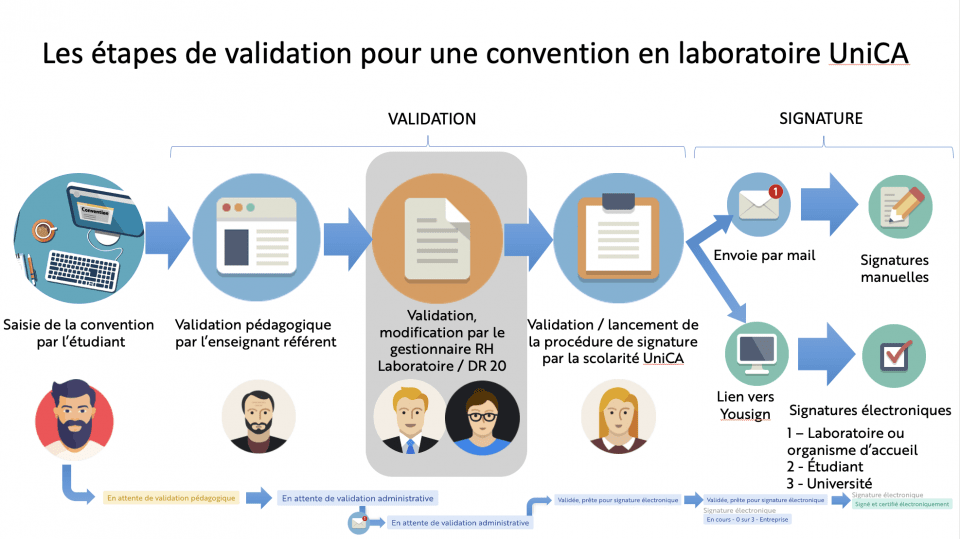
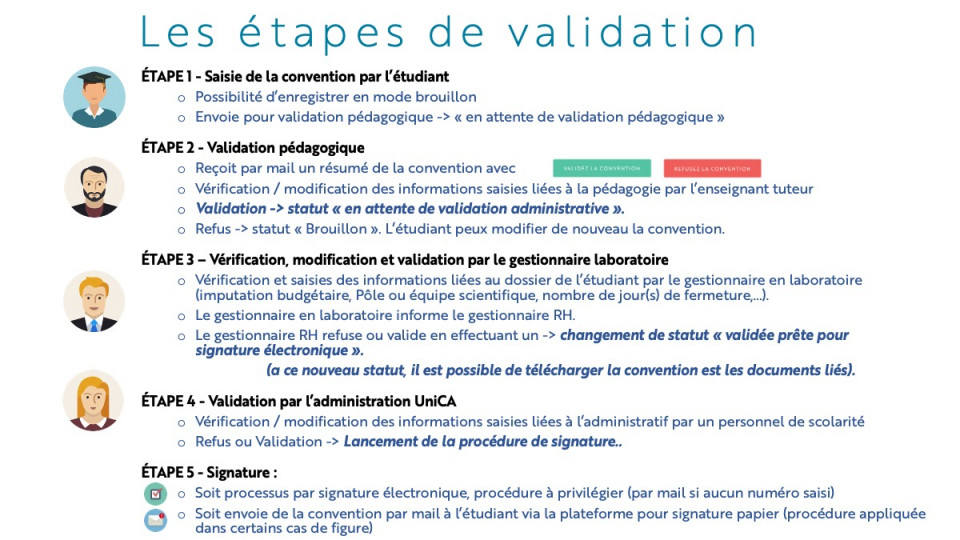
For the laboratory agreement model, there are four validation steps after the student submits the agreement:
- The academic supervisor or internship coordinator validates it from an academic perspective.
- The laboratory manager, if in agreement with the information provided, informs their HR department by any preferred means that the agreement is acceptable. There is no action required on the platform.
- The Université Côte d’Azur administration launches the signature procedure.
And three signatures:
Company (authorized company signatory legally able to bind the organization)
Student
Educational institution (Head of Faculty, Head of Academic Office, or any person delegated to sign internship agreements).
Do not sign:
The company supervisor
The academic supervisor (who normally validates instead).
If needed, here are tools to help you calculate duration or compensation:
Internship compensation calculator:
https://www.service-public.fr/simulateur/calcul/gratification-stagiaire
Internship duration in weeks or months:
https://www.calendrier-365.fr/calculez/periode-entre-deux-dates.html
Duration in working days or effective hours:
https://www.jours-ouvres.com/
Accessing Your Agreements
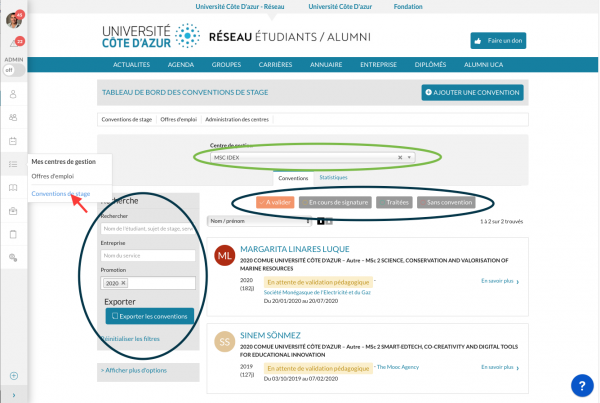
While waiting for a dedicated direct link, you can access your dashboard, which allows you to manage all agreements assigned to you in one single space.
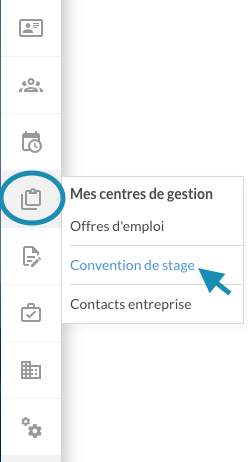
Go to the left-hand menu and click on:
My management centers → Internship agreements
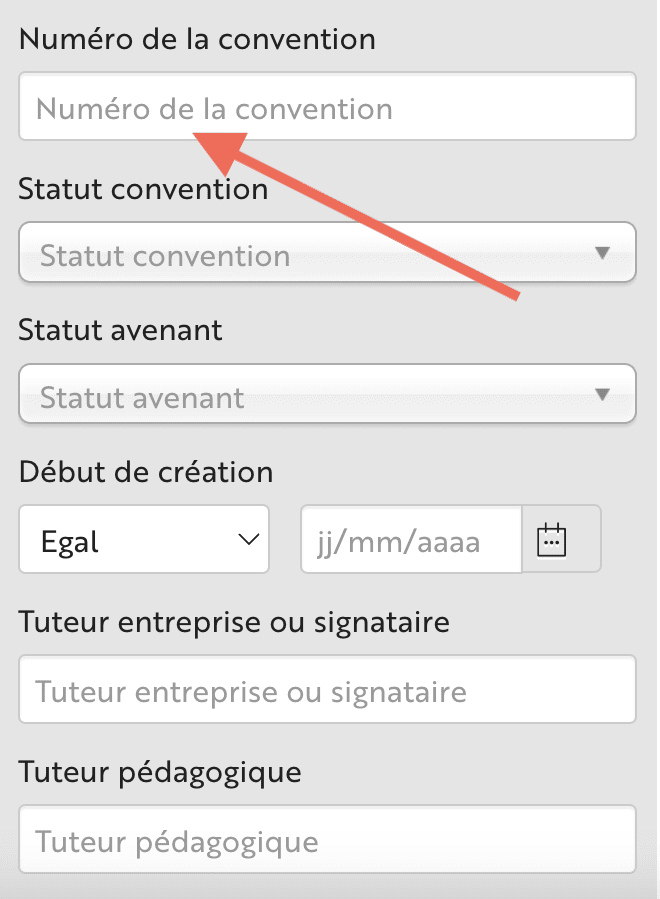
You may ask your student to send you the agreement number to simplify your search.
You can manage multiple filters to display only the agreements relevant to you within your management center.
You can filter by:
Agreement number
Student’s first and last name
Name of your organization (coming soon)
Agreement status
If your students’ agreements do not appear, reset the filters and make sure you are in the correct management center, as shown in the image below.
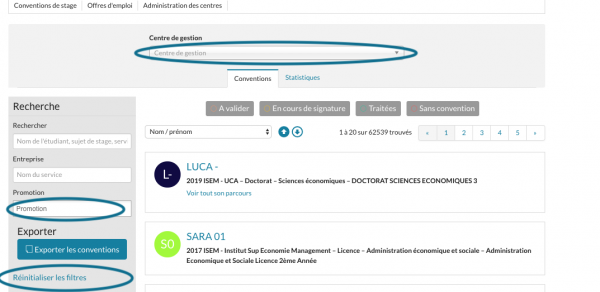
If you wish to see all students in a management center or within a specific program, you can display them.
Select your management center at the top of your dashboard.
To filter currently enrolled students, add the Cohort (Promotion) filter.
Viewing Only Your Agreements as the Student’s Laboratory Supervisor
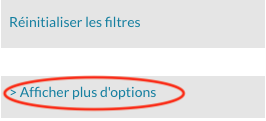
If you wish to see only the agreements where you are the laboratory supervisor, first click on “Show more options”.
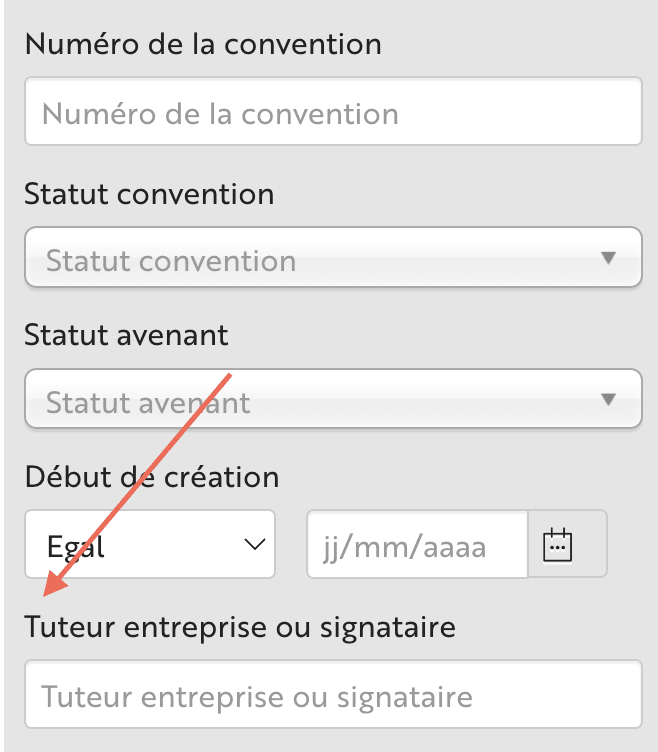
Then simply enter your last name to apply a dedicated filter.
If you wish to see only the agreements pending your validation, activate the Agreement Status filter and select Pending administrative validation.
You can also use the Cohort and Academic Year filters.
Tip:
If you save the filtered URL as a shortcut on your computer or in your browser, you can access your agreements to validate in one click.
Filters to activate:
Agreement status: Pending administrative validation
Company supervisor: Your name
Viewing the Information Contained in an Internship Agreement
Once you have found the agreement you are looking for, click on “Learn more” to view, refuse, modify, or validate the student’s agreement.
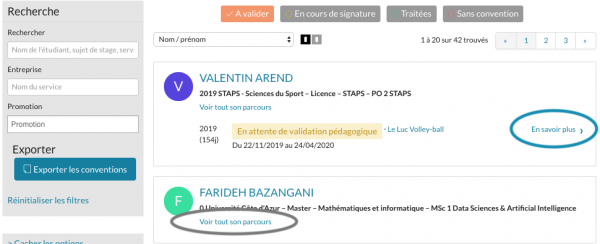
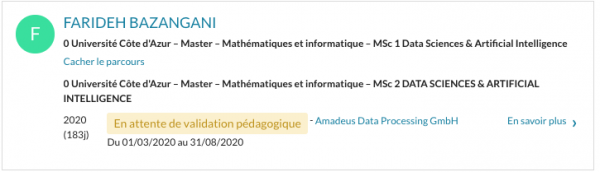
If the agreement does not display, it may be because the student’s workflow is relatively long.
To display missing information, click on “View full workflow”.
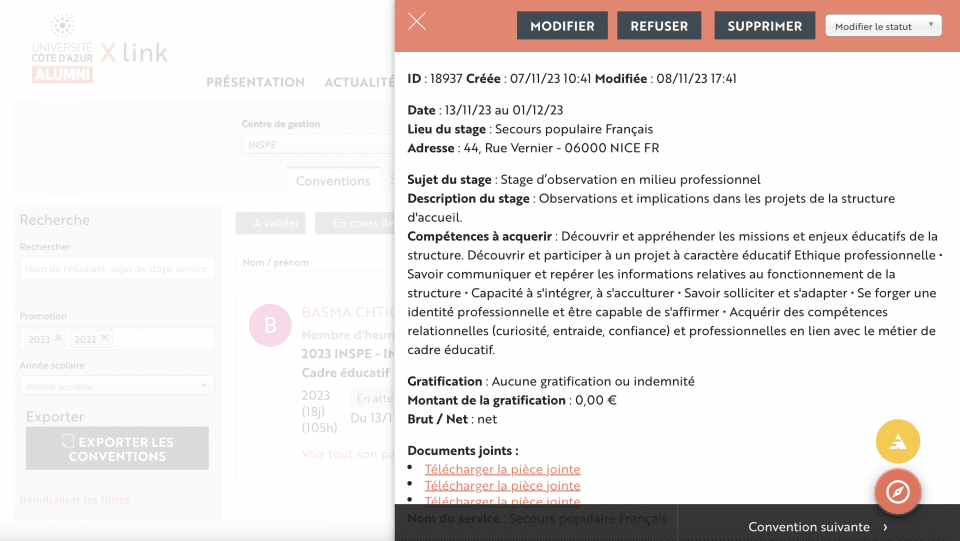
On this page, you will find a summary of the information entered by the student (except for the compensation amount, which is currently not correctly displayed).
You also have access to the documents uploaded by the student.
Administrative Validation
As laboratory HR staff, you must perform the administrative validation.
As with each step, you have the options to modify, refuse, or delete the agreement.
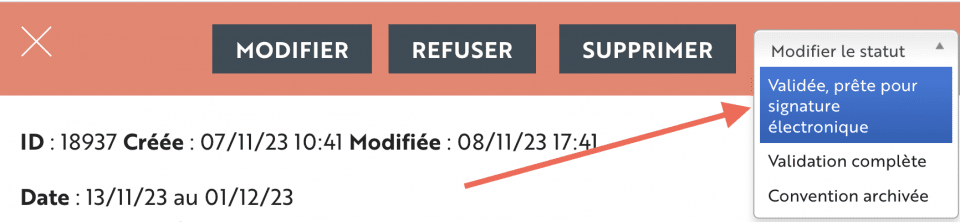
To validate it, click on Change status, then select:
Validated, ready for electronic signature.
You will then transfer control to the student’s reference academic office.
Summary of Filters
Below is a brief summary of where to find the filters you can use in your internship agreement dashboard.